> ## Documentation Index
> Fetch the complete documentation index at: https://domoinc-openapi-sync-dataflows.mintlify.site/llms.txt
> Use this file to discover all available pages before exploring further.
# Workflow Start Form Brick
## Intro
The Workflow Start Form Brick allows you to quickly start a workflow from a Domo Brick by gathering and passing customizable input values.
Learn more in the [Domo Bricks | Overview](/s/article/4423762260375).
***
## Access the Workflow Start Form Brick
1. In the navigation header, select **Appstore** to open the Domo Appstore.
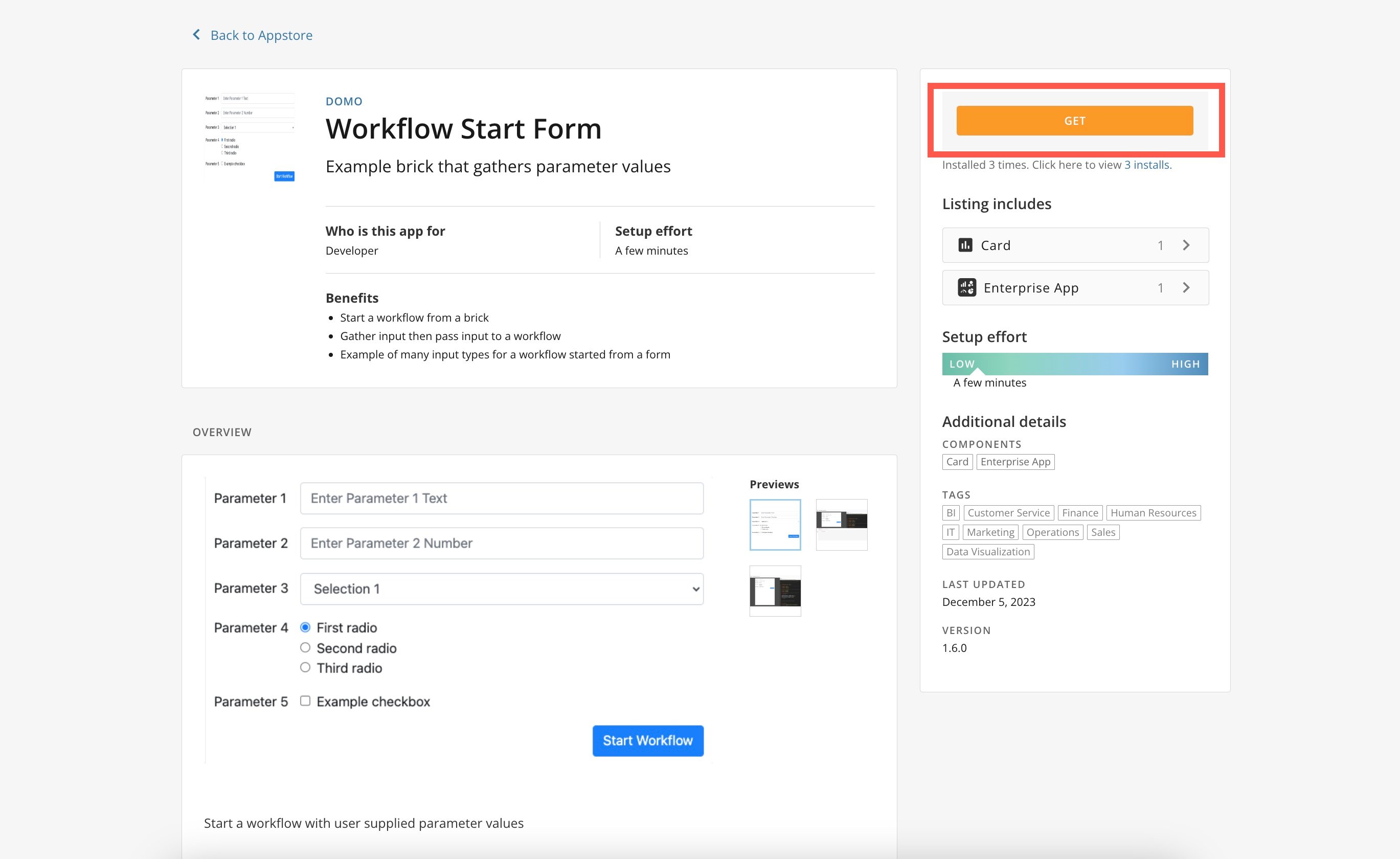
2. Use the search bar to locate the Workflow Start Form Brick and open its Details page.
3. Select **Get**.
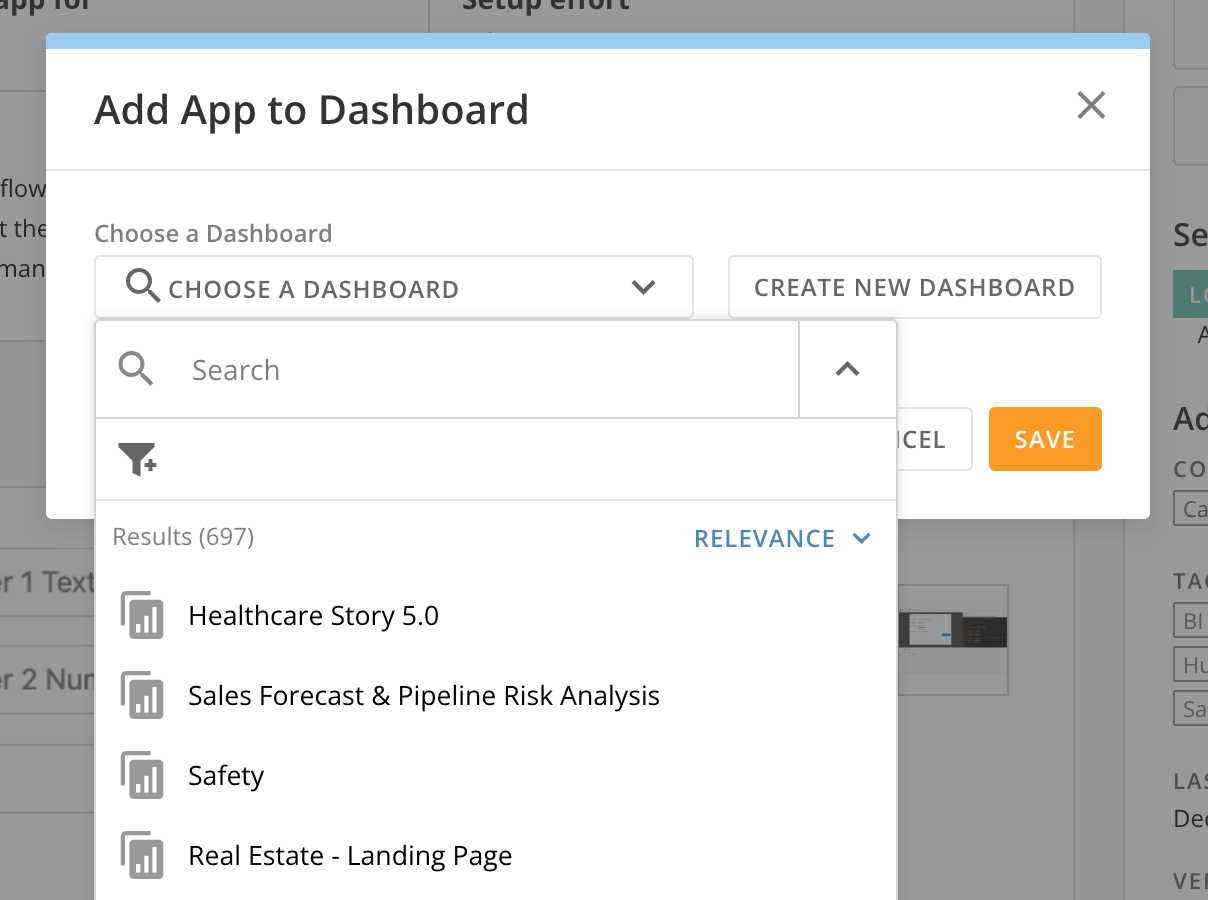
 4. Save the brick to an existing dashboard or create a new one and select **Save**.
 5. Go to the dashboard to begin developing your brick. Learn how to
[get started with Domo Bricks ](https://developer.domo.com/portal/ec60c4980e1b5-getting-started-using-domo-bricks) in our developer portal.
## Use the Workflow Start Form Brick
**Important:** Before you can successfully use the brick, you must have an existing workflow.
### Input Controls
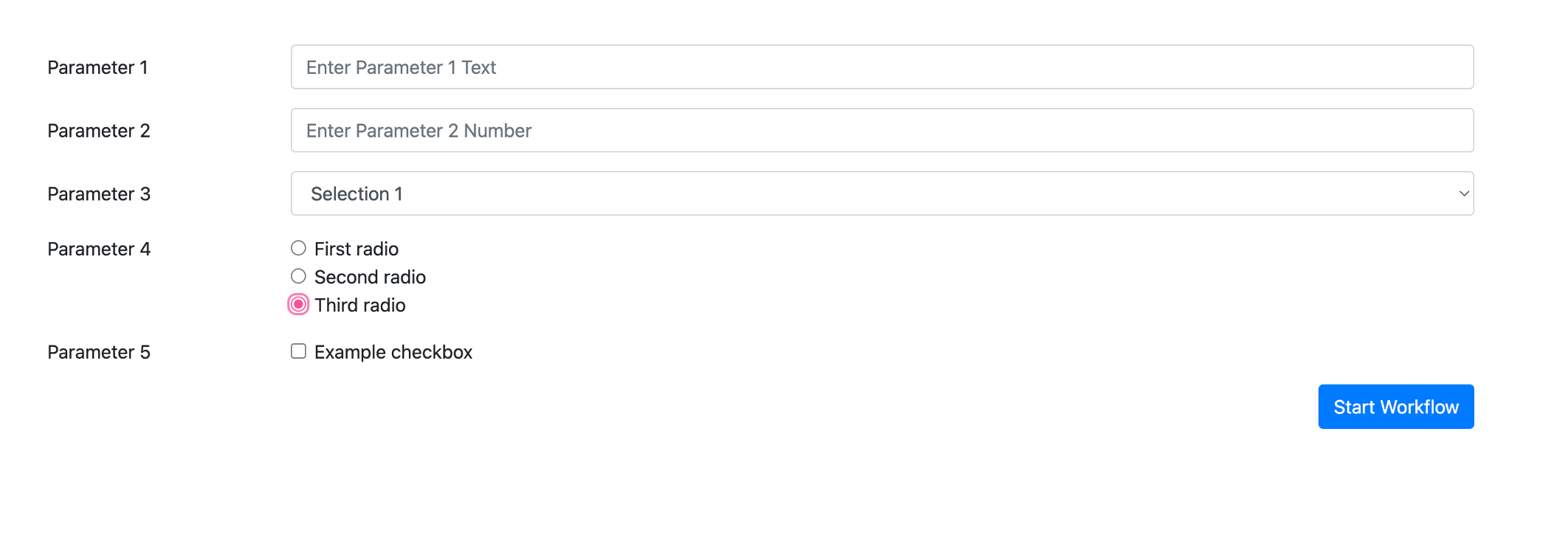
There are five available sample input controls in the Workflow Start Form Brick:
* Text
* Number
* Dropdown selector
* Single-select radio button
* Checkbox
Each of these can be configured and values passed through to the configured workflow.
5. Go to the dashboard to begin developing your brick. Learn how to
[get started with Domo Bricks ](https://developer.domo.com/portal/ec60c4980e1b5-getting-started-using-domo-bricks) in our developer portal.
## Use the Workflow Start Form Brick
**Important:** Before you can successfully use the brick, you must have an existing workflow.
### Input Controls
There are five available sample input controls in the Workflow Start Form Brick:
* Text
* Number
* Dropdown selector
* Single-select radio button
* Checkbox
Each of these can be configured and values passed through to the configured workflow.
 ### Configuration
To configure your brick, hover over the card to display the **Card options**.
Select **Card options** > **Edit Card** to display the brick settings. Here you can view the code editor for JavaScript, HTML, and CSS.
### Configuration
To configure your brick, hover over the card to display the **Card options**.
Select **Card options** > **Edit Card** to display the brick settings. Here you can view the code editor for JavaScript, HTML, and CSS.
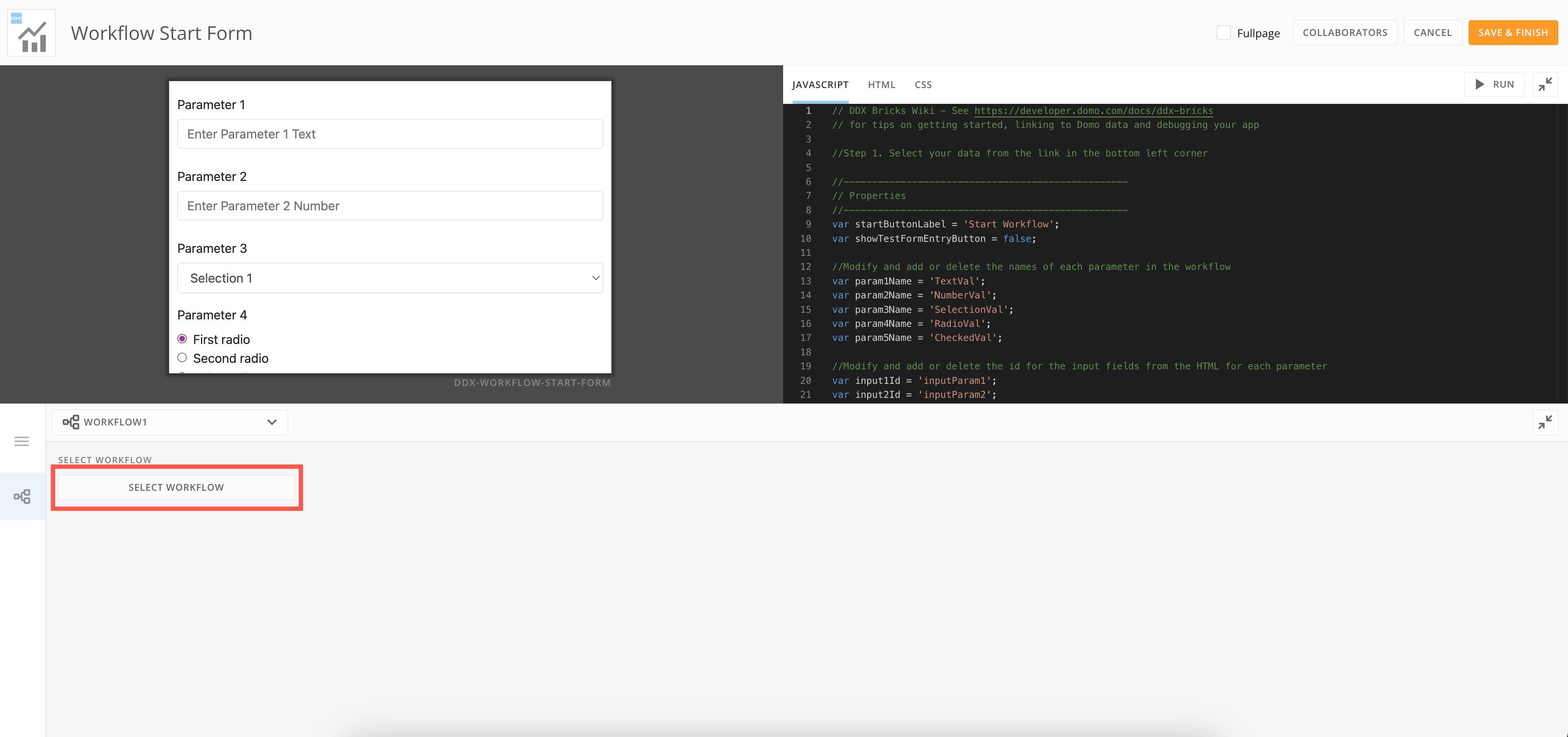
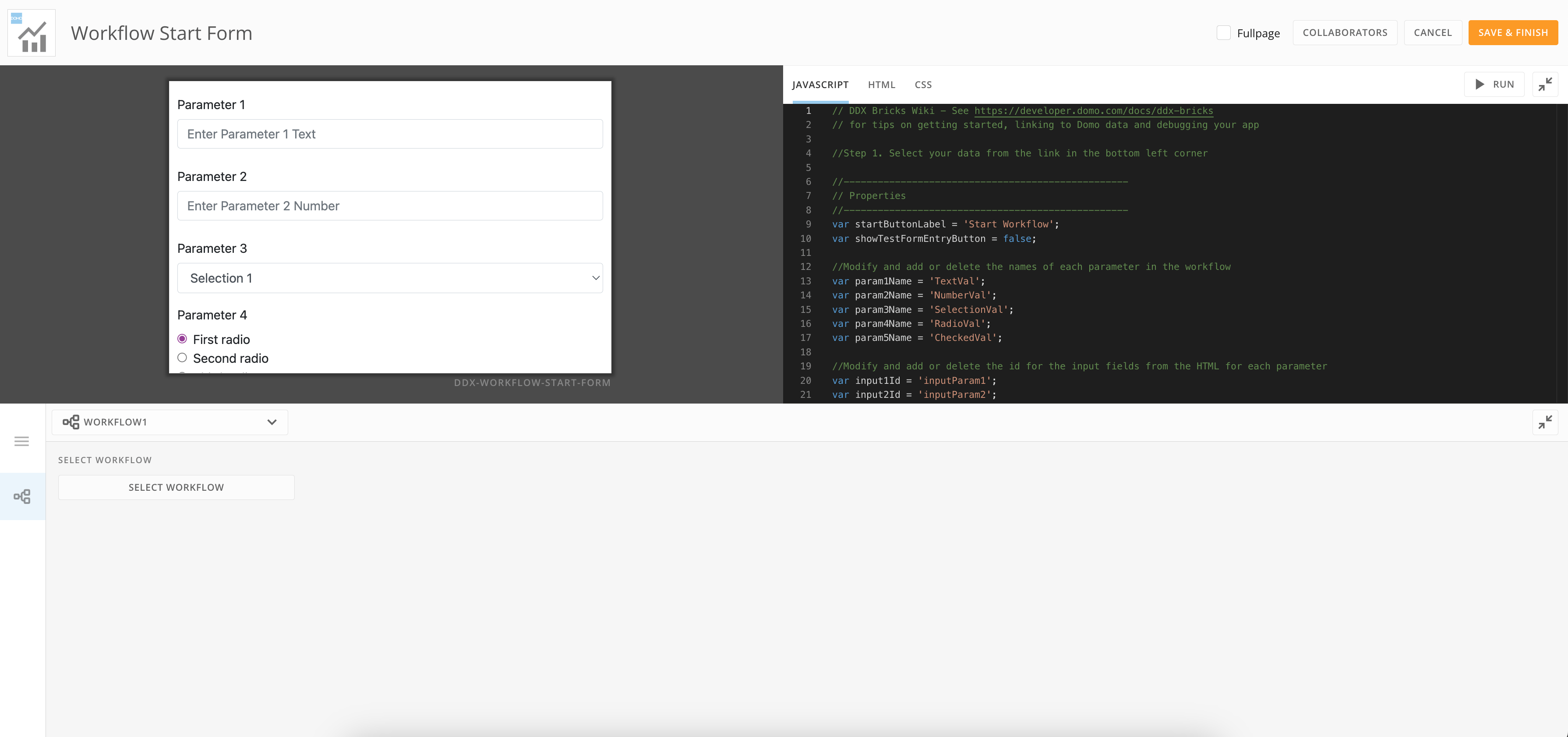 Use the **Select Workflow** option to search for the workflow you want to connect to your brick.
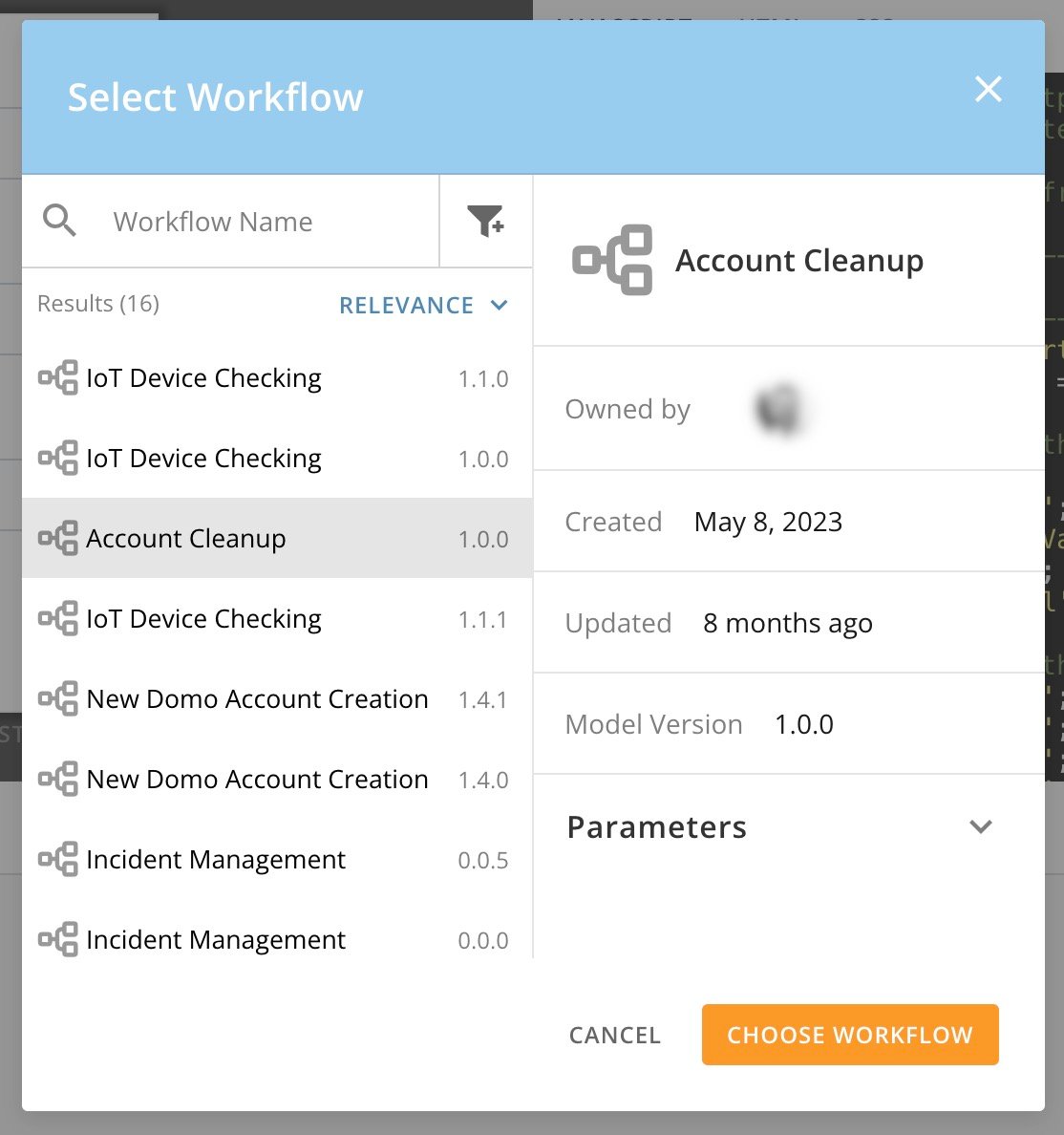
 Locate your workflow and select **Choose Workflow**.
 ### Edit Brick
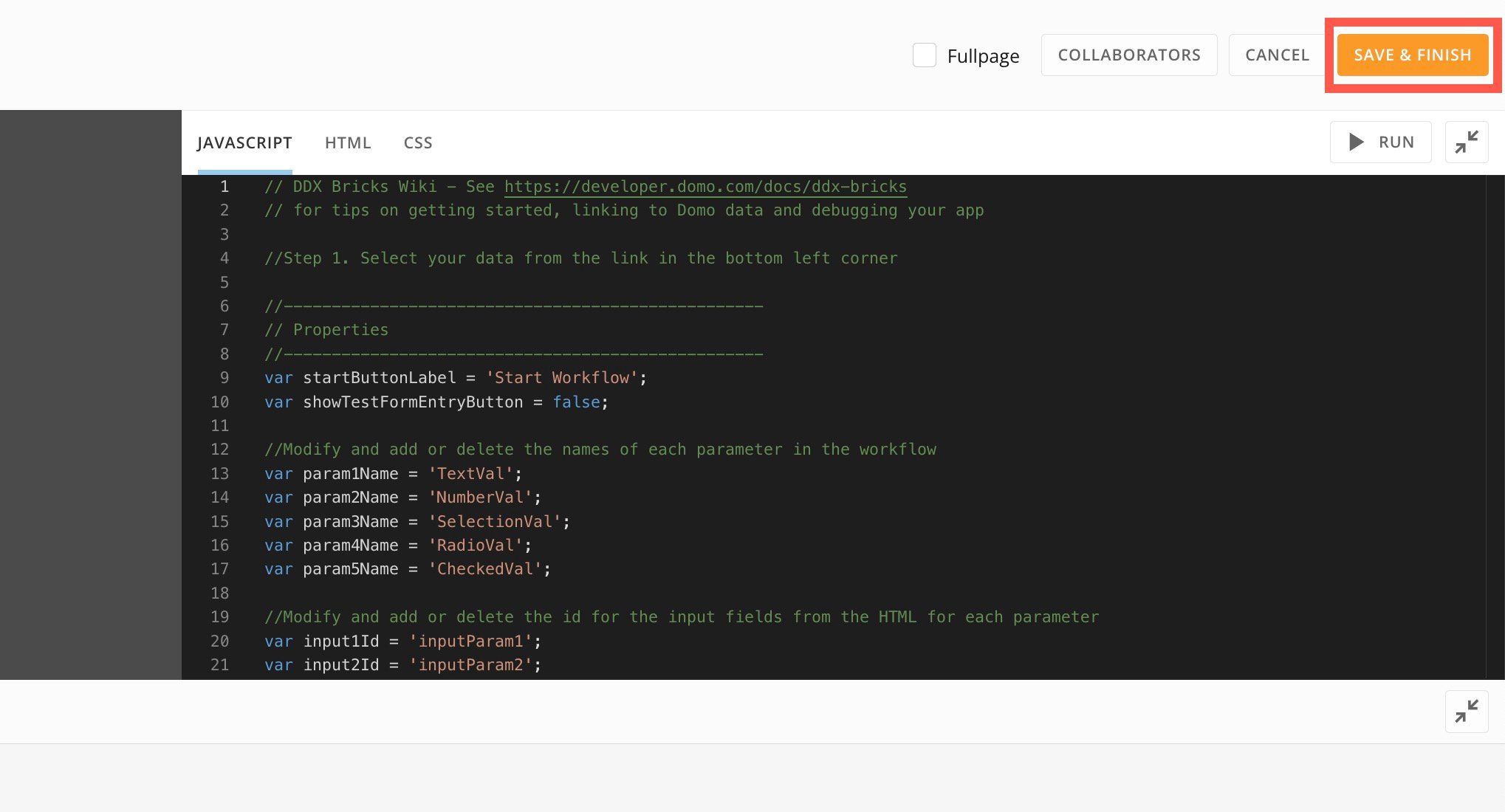
In the brick editor, follow the instructions in the **JavaScript**, **HTML**, and **CSS** tabs to configure the parameters of your workflow.
### Edit Brick
In the brick editor, follow the instructions in the **JavaScript**, **HTML**, and **CSS** tabs to configure the parameters of your workflow.
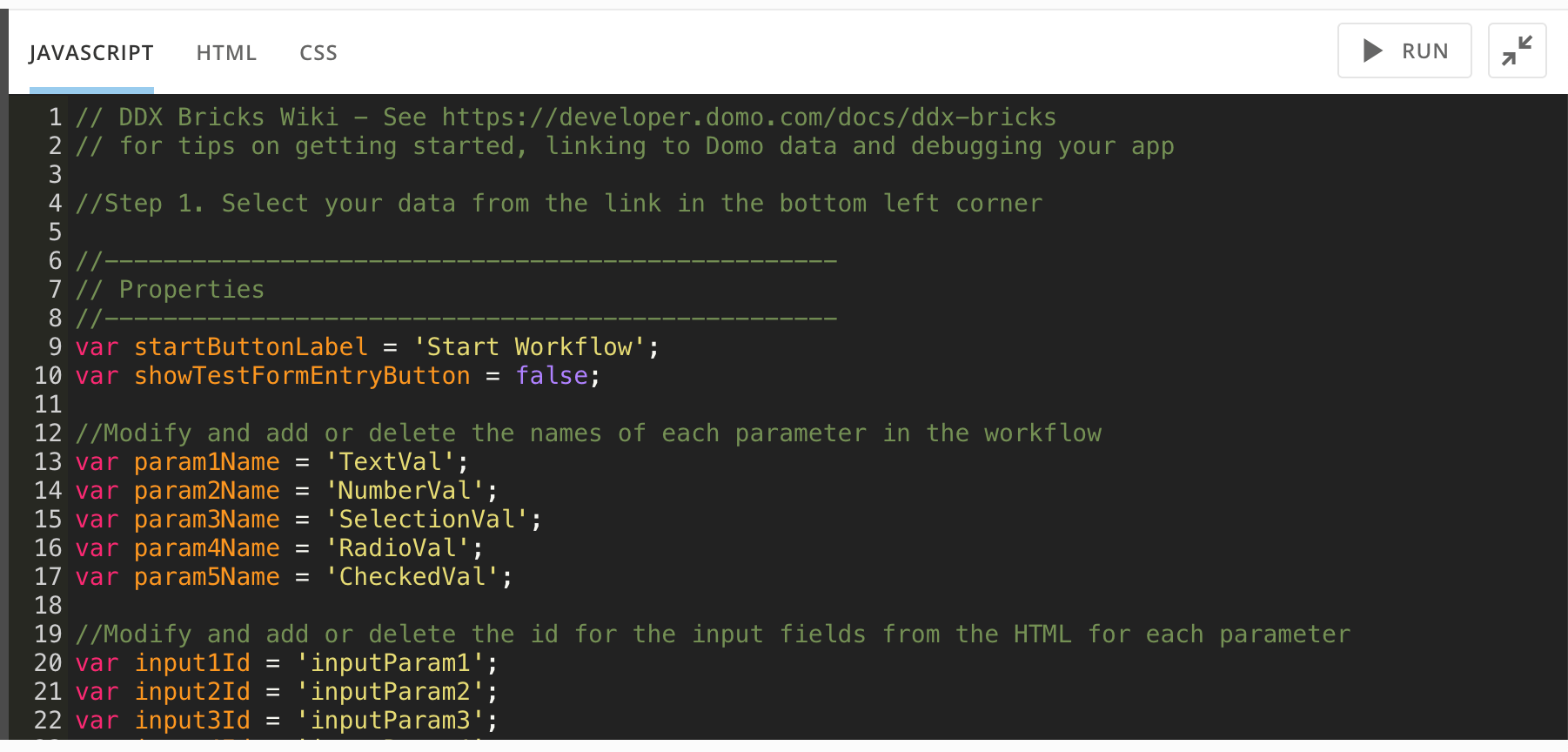 Select
  **Run** to run the code in the app preview before saving and closing.
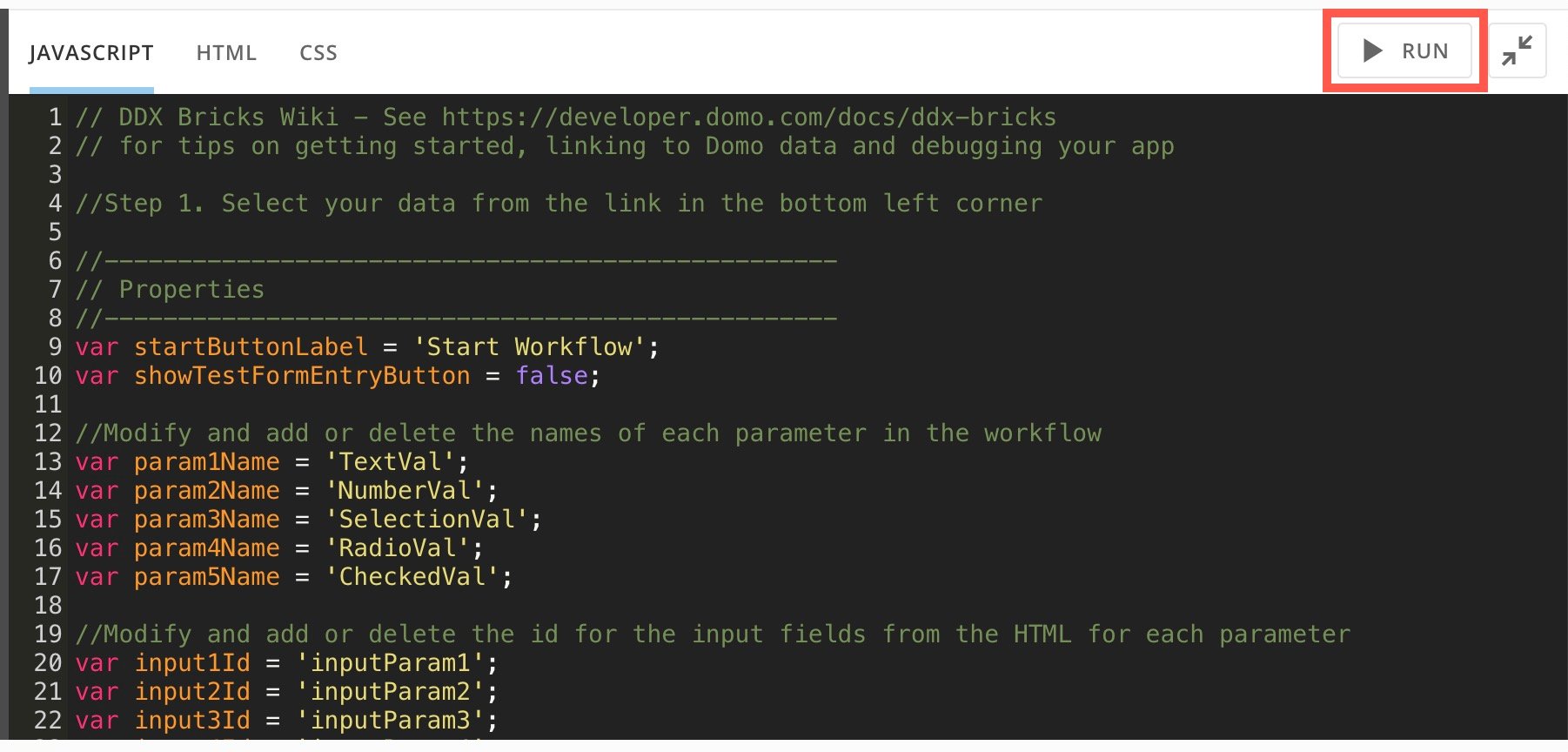 If the code runs correctly, select **Save & Finish**.